
How to share your board
With Team Absence, you can reuse the same board across multiple channels and teams. This helps you manage absences efficiently for larger teams or across different departments.
Note: Only board administrators can share a board.
Step 1: Find your mirror code
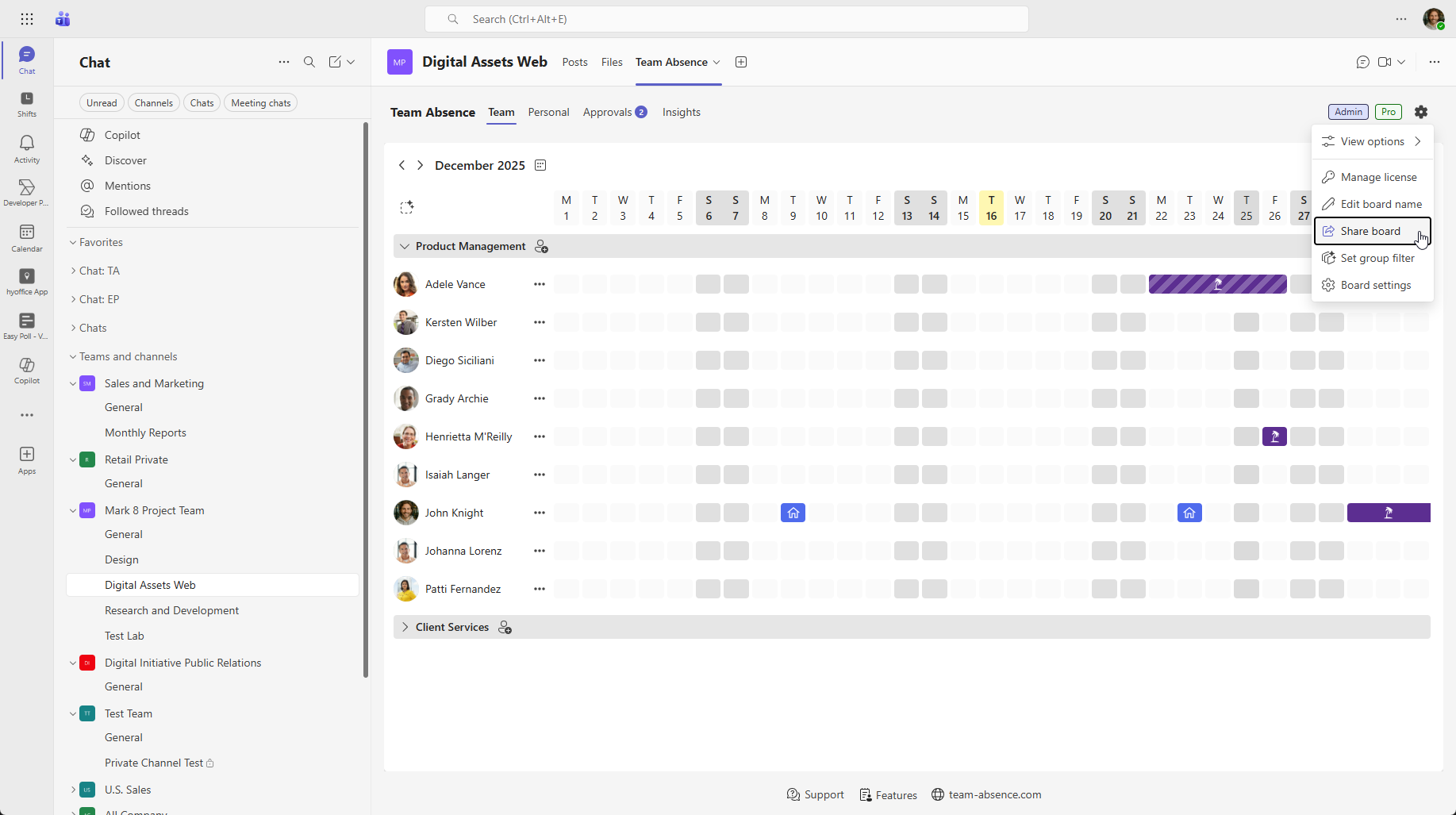
Open your board in Microsoft Teams and select “Share board” from the upper-right corner.
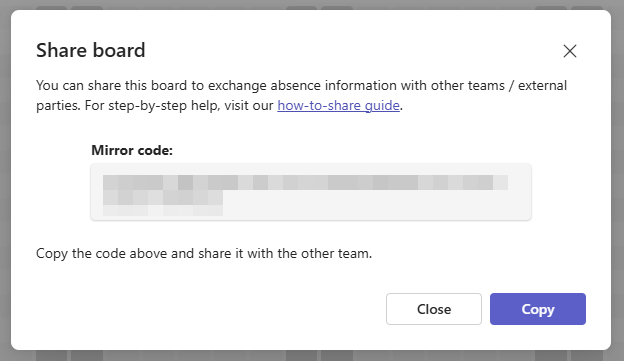
Copy the mirror code.
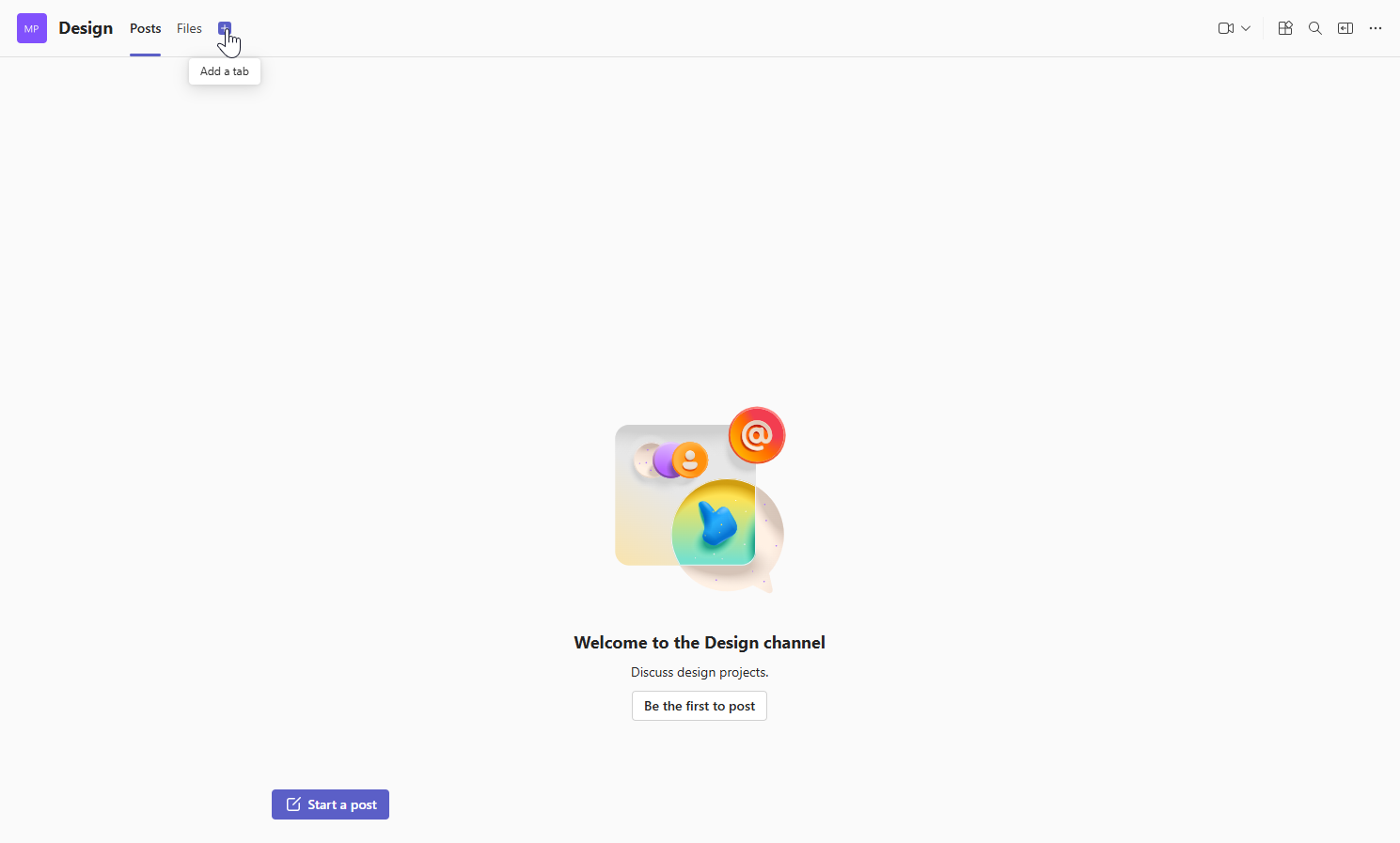
Step 2: Install Team Absence
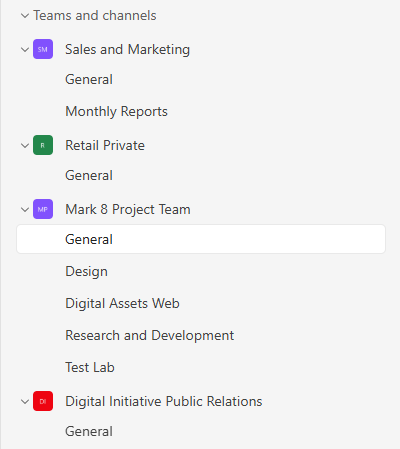
Install Team Absence in the Microsoft Teams channel where you want to reuse the board.
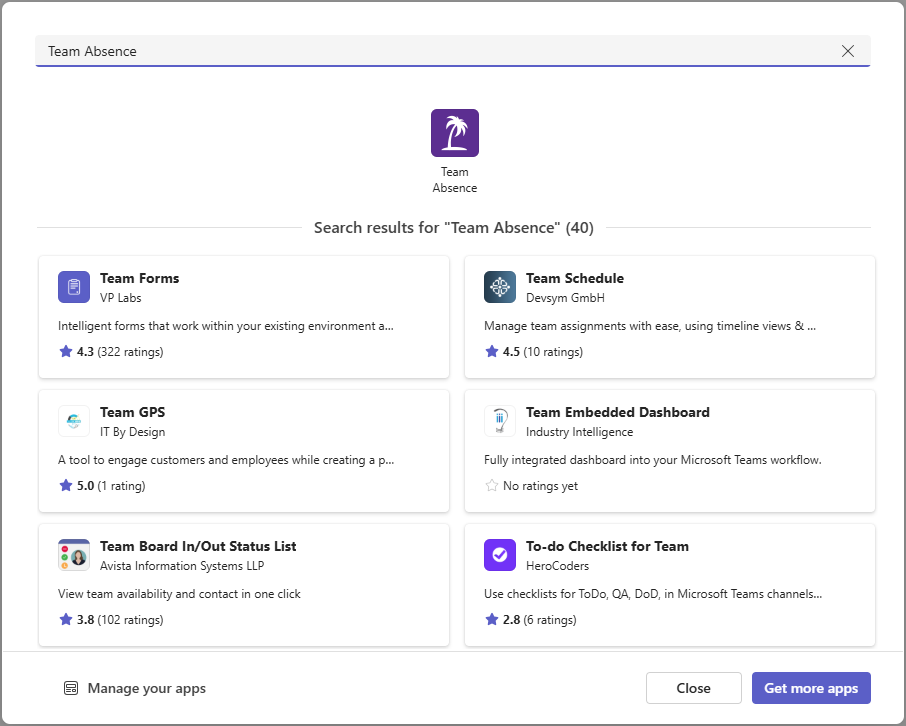
Step 3: Join existing board
Select “Join existing board” and paste the mirror code you copied in Step 1.
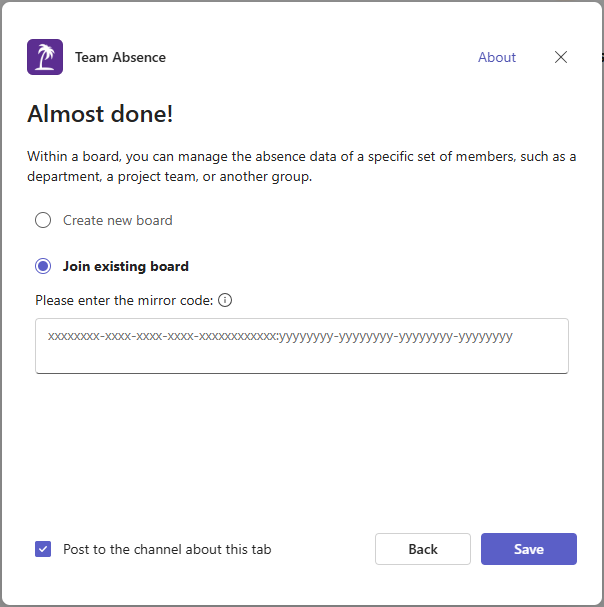
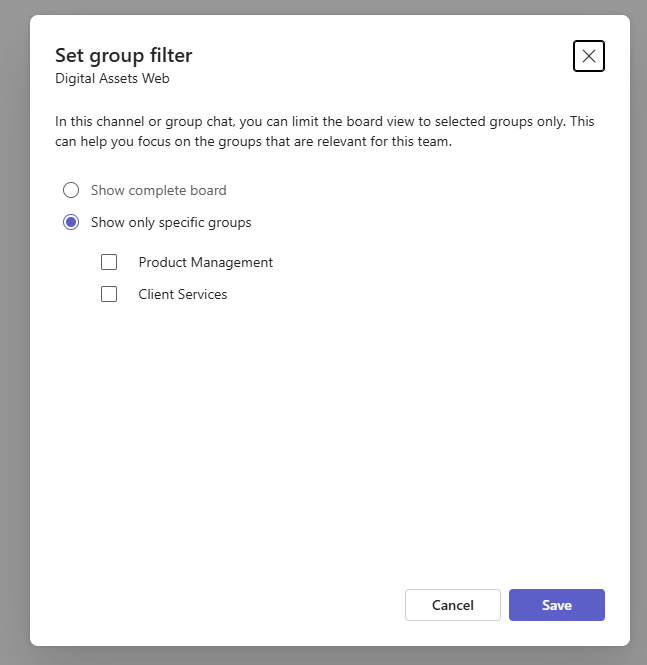
Step 4: Configure group filter
You can mirror the entire board or limit the view to specific groups.
Once a group filter is active, members will only see the groups you selected for that channel or group chat.

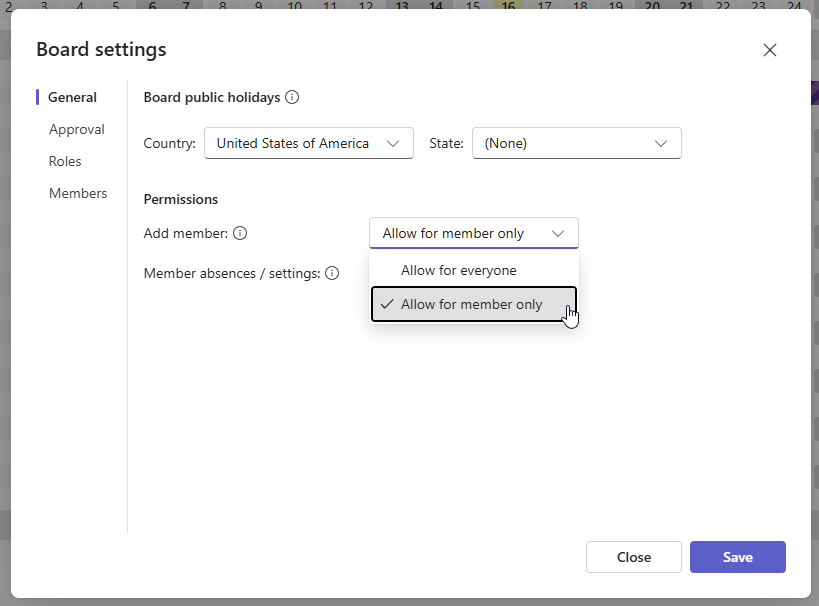
Optional: Restrict "Add member"
In the board settings, you can control who is allowed to add new members.
Select “Allow for member only” in the “Add member” permission to ensure that users can only add themselves to a board or group. This helps prevent absence data from being shared unintentionally.
If you experience any issues while sharing your board, please use our contact form.