

Resource planning in Microsoft Teams works best when a project manager can answer two questions before committing to a date: Who will actually be available? and What work depends on them? Project Plan by Cherryware supplies the high-level Gantt chart, tasks, milestones, dependencies, and resource assignments. Team Absence adds the availability and team-capacity perspective.

Used side by side, the two apps support a practical planning routine inside Microsoft Teams. Each works independently and retains a clear purpose: review availability in Team Absence, then reflect relevant planning decisions in Project Plan.
Why availability belongs in project resource planning
Research supports the underlying management practice: teams perform better when planning is deliberate, and project estimates are more credible when foreseeable leave is included. Together, the findings show why reliable availability data matters: it supports more realistic estimates, earlier risk detection, and better-informed project decisions.
Planning ahead helps teams perform better
A meta-analysis covering 33 independent samples, 1,885 teams, and 96 effect sizes found a positive relationship between team planning and performance (ρ = .31; 95% CI [.20, .42]).
Read the 2023 meta-analysisInclude planned staff leave in project estimates
An exploratory study of software projects reported that success was more likely when initial estimates accounted for staff leave. The observational convenience samples make this a risk-management signal, not a guaranteed effect.
Read the software-project studyVacation helps employees recover and recharge
A 2025 meta-analysis of 32 studies and 256 effect sizes found a large positive effect of vacations on employee well-being immediately after leave. Good planning accommodates time off instead of pressuring people to cancel it.
Read the vacation meta-analysisThe practical lesson is simple: planned absence is not an exception to the project model. It is one of the inputs that should shape estimates, sequencing, buffers, and coverage decisions from the beginning.
What resource planning in Microsoft Teams should answer
Resource planning is more than putting names next to tasks. A useful view connects availability, role coverage, workload, and the delivery schedule so the team can make commitments that survive contact with reality.
- Who is available during each project phase?
- Where does total team capacity drop below a safe level?
- Which skills or decision-makers have no backup?
- Which tasks and milestones depend on those people?
- What buffer is needed around leave, handovers, and part-time schedules?
- Who will update the plan when availability changes?
Availability is not the same as workload or skill fit. A shared absence view improves the input, while the project manager still has to evaluate allocation, competence, priority, and dependencies. Remote work should also remain distinct from absence: a remote employee may be fully available.
The two layers of resource planning in Microsoft Teams
Use each app for the job it is designed to do. Project Plan turns the delivery model into a visible timeline; Team Absence answers who can realistically contribute to it.
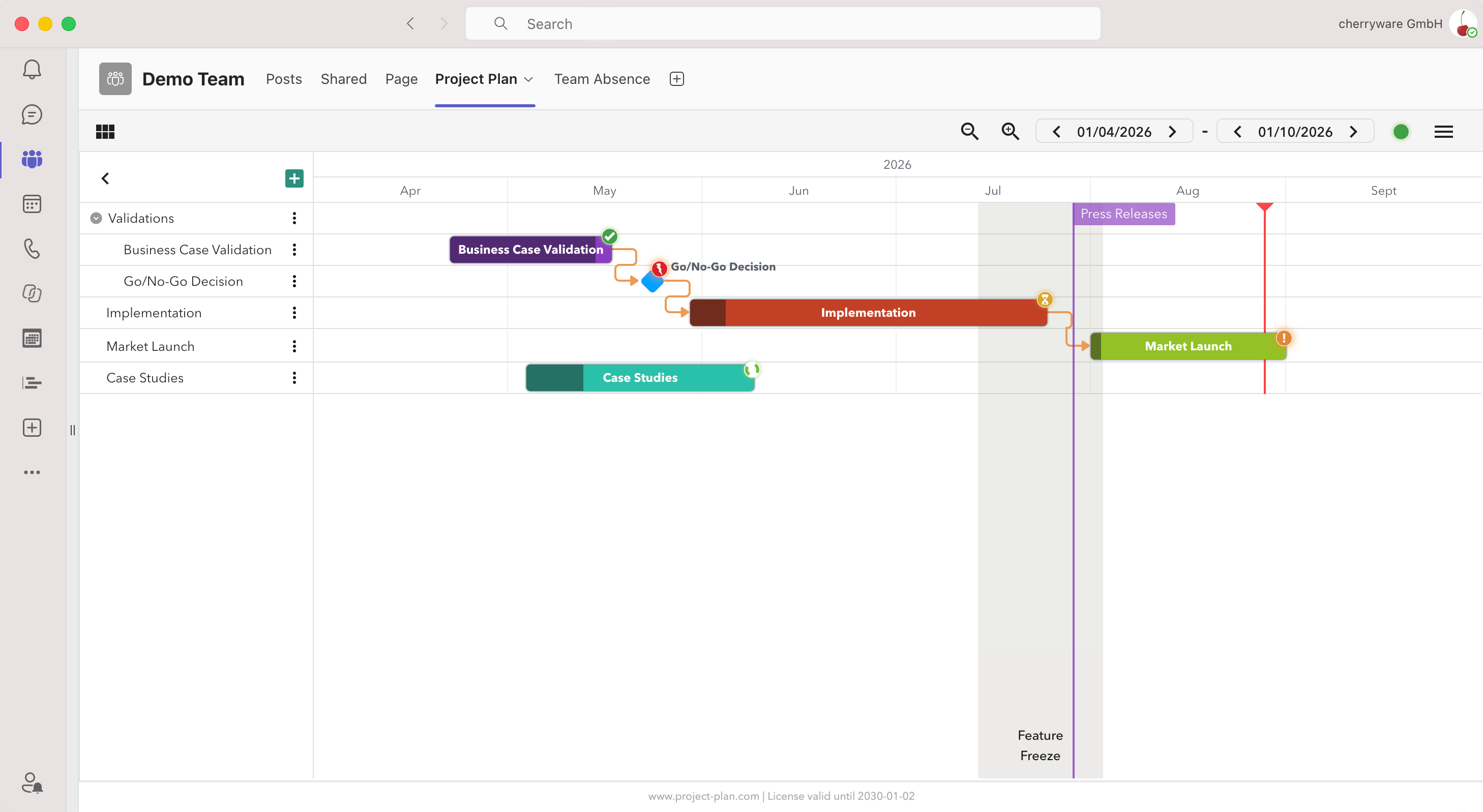
Project Plan: turn commitments into a Gantt chart
Project Plan creates high-level plans and roadmaps in Microsoft Teams, PowerPoint, Excel, or the browser. Its focus is the project structure and timeline.
- Gantt charts for plans, roadmaps, and timelines
- Tasks, subtasks, milestones, and target dates
- Dependencies between tasks and milestones
- Resource or team assignment with resource filtering
- A cloud-synced Project Plan view across its supported environments
Team Absence: know who can contribute
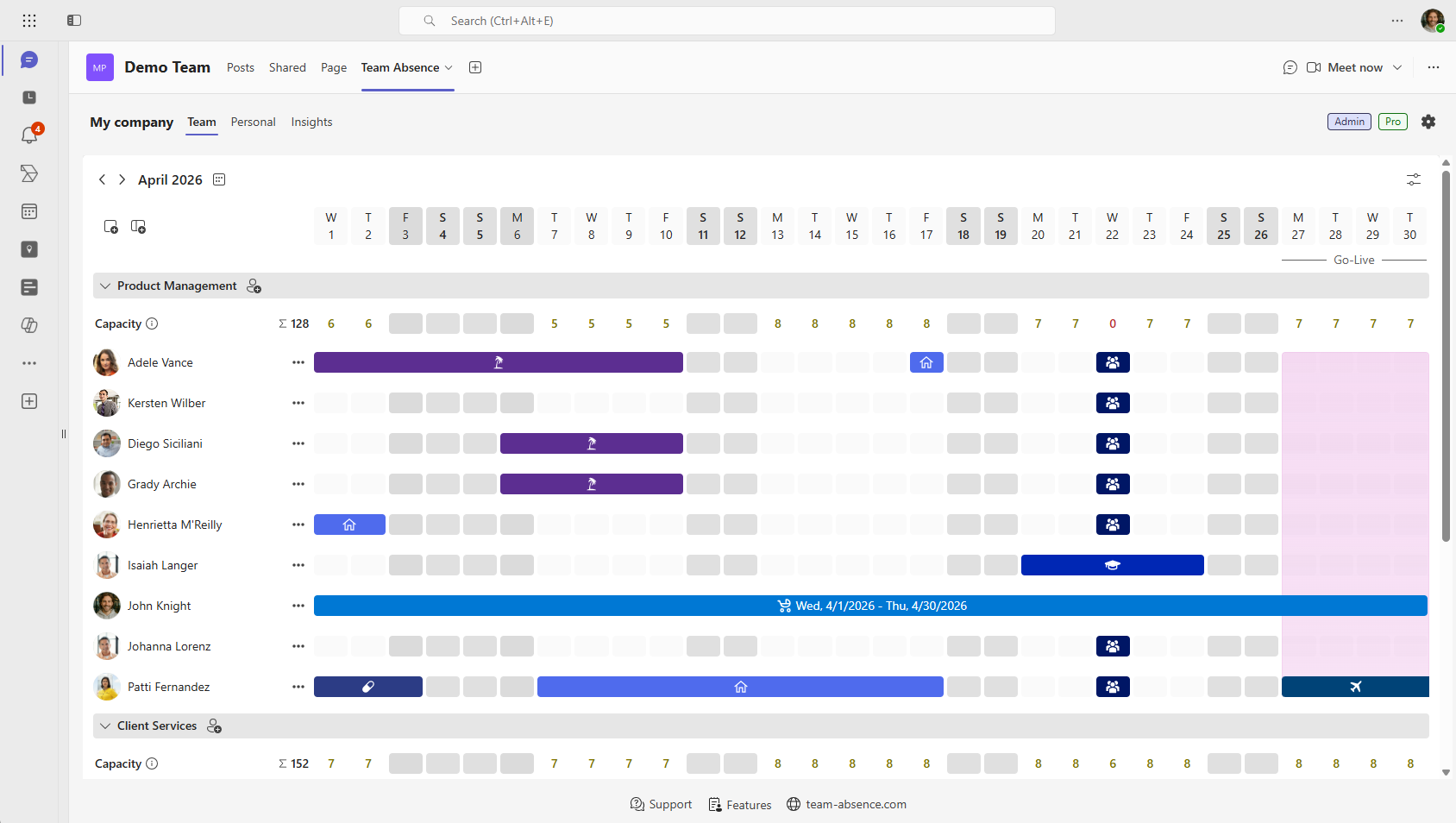
Team Absence gives teams a calendar and capacity view inside Microsoft Teams. Project managers can see planned absences before they become schedule surprises.
- Vacation, PTO, sick leave, remote work, and custom entry types
- Shared Team View with flexible groups for departments or projects
- Approval workflows for entry types that need oversight
- Daily and monthly Team Capacity indicators
- One availability view instead of parallel planning spreadsheets
How to do resource planning in Microsoft Teams: 6 steps
Start with a small, repeatable process. The goal is not to create a perfect forecast; it is to make assumptions visible, detect conflicts early, and keep the plan current enough for decisions.
Define the resource pool and critical roles
List the people and teams that can contribute, the skills each phase requires, and the roles that would block progress if unavailable. Identify deputies for approvals, technical decisions, customer communication, and handovers.
- Include part-time schedules, regional holidays, and known non-project commitments.
- Separate named critical roles from interchangeable capacity.
- Agree who owns availability data and who owns the delivery plan.
A team may have enough total hours and still lack the one specialist a dependent task needs.
Create one dependable availability view in Team Absence
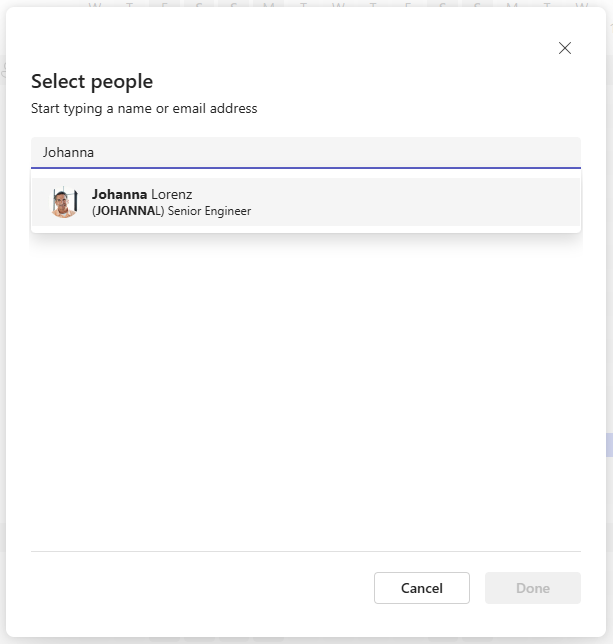
Add the relevant employees and groups to a Team Absence board, configure the entry types the team needs, and ask people to record planned time away early. Keep Remote Work separate from Vacation or PTO so location is not confused with availability.
- Use project or cross-functional groups when they reflect real coordination better than the org chart.
- Enable approvals only where the team needs an explicit decision.
- Review the team calendar before scope, sprint, or milestone commitments.
For a broader setup guide, see how to set up PTO management in Microsoft Teams.
Mark important project periods alongside team availability
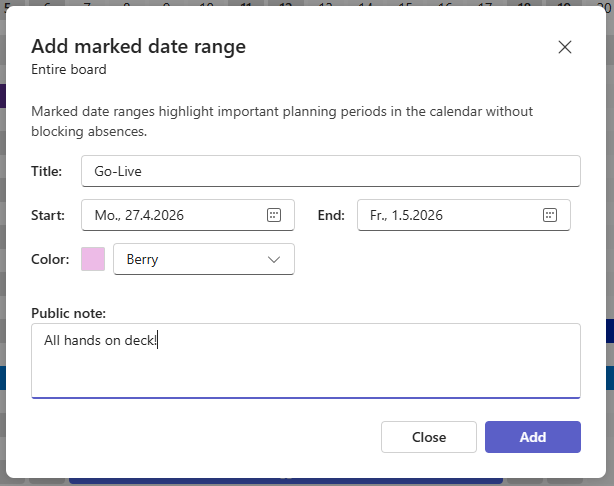
In Team Absence, select Add marked date range to highlight periods that people should consider when planning availability. Examples include integration tests, release freezes, customer go-lives, company events, peak-support periods, or school holidays. A marked date range can apply to the entire board or to a specific group, making relevant planning context visible in the team calendar without treating the period as an absence or changing anyone's availability.
- Choose whether the date range applies to the entire board or a particular group.
- Add a clear title, start and end dates, color, and optional public note.
- Use the note to explain why the period matters or what team members should consider.
Project Plan offers a corresponding Highlight date range feature for emphasizing important periods in the project timeline. This keeps release windows, freezes, or go-live periods visible while project managers work with tasks, milestones, dependencies, and resource assignments.
Marked and highlighted date ranges provide visual planning context. They do not replace availability information in Team Absence or formal milestones, tasks, dependencies, and ownership in Project Plan. When the same period matters in both views, mark it in Team Absence and highlight it in Project Plan so the context is visible wherever the team is planning.
Translate absence into usable capacity assumptions
Use Team Capacity to spot days or weeks with reduced staffing, then inspect who is unavailable. Availability is provided in available days for the selected period. Convert that observation into an explicit planning decision: reduce planned output, shift the work, add coverage, or protect a buffer.

- Check both the team total and the availability of critical roles.
- Use the red, yellow, and green color coding to distinguish low, reduced, and healthy availability at a glance.
- Avoid treating every available person as equally suitable for every task.
- Record the assumption behind any buffer or date change.
Capacity indicators support a decision; they do not replace workload estimates or skill-based allocation. To activate the Capacity view, open Team view and select View options using the icon in the upper-right corner.
Build the high-level Gantt chart in Project Plan
Create the phases, tasks, subtasks, milestones, and dependencies in Project Plan. Assign resources or teams where that information helps explain ownership, then place commitments around the known availability constraints instead of adding leave after the schedule is fixed.
- Keep milestones outcome-based and make critical dependencies visible.
- Use realistic handover time before and after longer absences.
- Leave contingency where role coverage is weak or estimates are uncertain.
Project Plan keeps its plan available across supported environments. Team availability remains managed independently in Team Absence, and the planning review connects the two perspectives. Explore Project Plan.
Review both views on a fixed cadence
Before a sprint, milestone, steering meeting, or weekly planning session, compare Team Absence with Project Plan. If availability changed, decide whether scope, sequencing, ownership, or dates must change, then reflect that decision in the Gantt chart.
- Look ahead far enough to cover the next meaningful commitment.
- Recheck after newly approved leave or a change in a critical role.
- Tell the team what changed and which assumption triggered the update.
A short recurring review is more reliable than a detailed plan that nobody revisits.
Example: turn planned absence into a realistic schedule
Imagine an eight-week product launch. Backend validation must finish before quality assurance can begin, and both tasks feed a launch-readiness milestone.
- Team Absence shows that the backend owner is on PTO during the planned validation week and that QA capacity is reduced immediately afterward.
- The project manager checks whether a qualified backup exists instead of relying only on the total headcount.
- The team moves validation earlier, adds handover time, and protects a small contingency before the launch-readiness milestone.
- The project manager records those changes in Project Plan so tasks, dependencies, and the milestone reflect the new decision.
The two independent views create value together: dependable availability information leads to a deliberate scheduling decision before the conflict becomes a delay.
Common resource-planning mistakes
The tools are most useful when the planning rules around them are clear. Avoid these four common failure modes.
Equating headcount with usable capacity
Ten available people do not equal ten interchangeable resources. Check skills, permissions, decision rights, and current allocation.
Treating remote work as absence
Work location and availability answer different questions. Keep remote work visible without subtracting it from capacity by default.
Checking leave only after dates are promised
Review planned absence while estimating and sequencing the work, then recheck it before the next commitment.
Skipping the handoff between independent tools
Both apps retain a clear, independent purpose. Name an owner and cadence for comparing the two views and reflecting decisions in the plan.
Resource planning in Microsoft Teams: FAQ
Is Team Absence a complete project resource-management tool?
No. Team Absence provides the absence, availability, and team-capacity layer. It does not replace task estimation, skill matching, budget planning, timesheets, or a project schedule. Use its data as an input to those decisions.
How do Team Absence and Project Plan work together?
They work independently and complement different planning decisions. Team Absence provides the availability and capacity perspective; Project Plan holds dates, tasks, milestones, dependencies, and resource assignments. A recurring review connects the two views.
Can you create a Gantt chart directly in Microsoft Teams?
Yes. Project Plan can be added to Microsoft Teams and used to create high-level Gantt charts with tasks, subtasks, milestones, dependencies, and resource or team assignments.
How often should a resource plan be updated?
Use a cadence that matches the speed and risk of the project. A weekly check is a practical default, with extra reviews before sprints, major milestones, staffing changes, or newly approved leave that affects critical work.
Make availability a planning input—not a late surprise
Team Absence gives project managers and teams a shared view of planned absence and capacity inside Microsoft Teams. That makes availability visible early enough to influence estimates, coverage, and commitments.
Use Project Plan for the high-level Gantt chart and delivery structure. Because both tools work independently, connect their two perspectives through a deliberate review routine—and start by making team availability dependable.